Exporting your data
Bïndo can email you a file to import into BirdLasser or eBird. Exports are not a one-off action; they are activated in your settings and then run automatically every time you end a list.
How it works
- Open Settings.
- Under the Exports section, toggle on BirdLasser, eBird, or both.
- Tap Save.
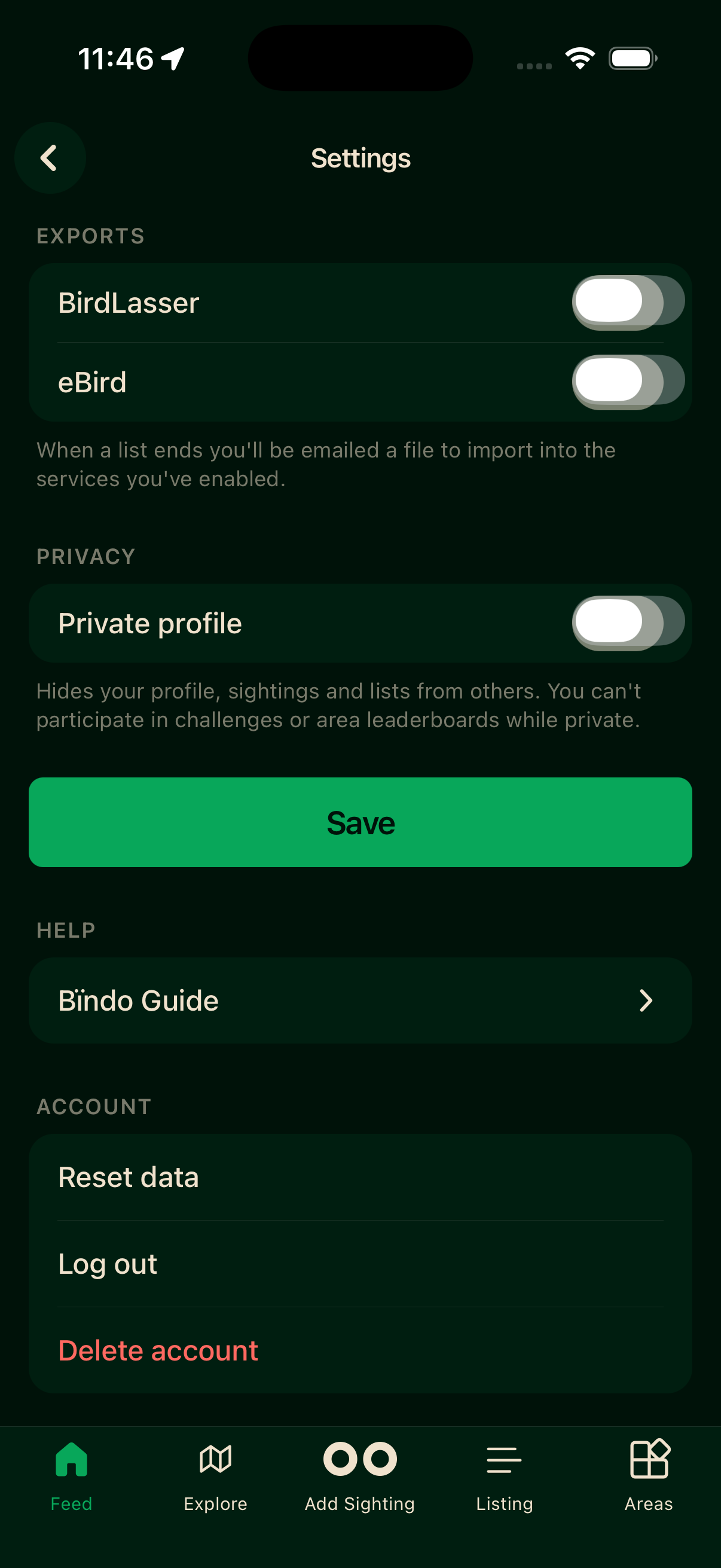
From that point on, each time you end a list, Bïndo emails you a file in the format of the services you have enabled. You can then import the file into BirdLasser or eBird.
When a list ends you'll be emailed a file to import into the services you've enabled.
Importing into BirdLasser
Open the BirdLasser app and use its standard import flow to load the file Bïndo emailed you.
Importing into eBird
Go to ebird.org, sign in, and use eBird's standard import flow to load the file.
Turning exports off
Toggle BirdLasser or eBird off in Settings and tap Save. Future list-end events will no longer trigger an email for that service.