Logging sightings
A sighting is the core record in Bïndo: a species, a place, and a time. Everything else (life list, trips, feed) builds on top of sightings.
Video walkthroughs
Visibility
Sightings are public by default. Anyone on Bïndo can see them in the Feed, on your profile, and on the map. If a sighting is at a sensitive location (an active nest, a roosting site for a rare species), mark it sensitive when you log it. Sensitive sightings hide the exact coordinates from public views; only the general area is shown.
Because they're public and shared, log each bird where and when you actually saw it. See Accurate sightings.
Quick-add
Tap the Add Sighting tab and search for a species, then tap its ⊕. Bïndo grabs your GPS location and saves the sighting in one tap.
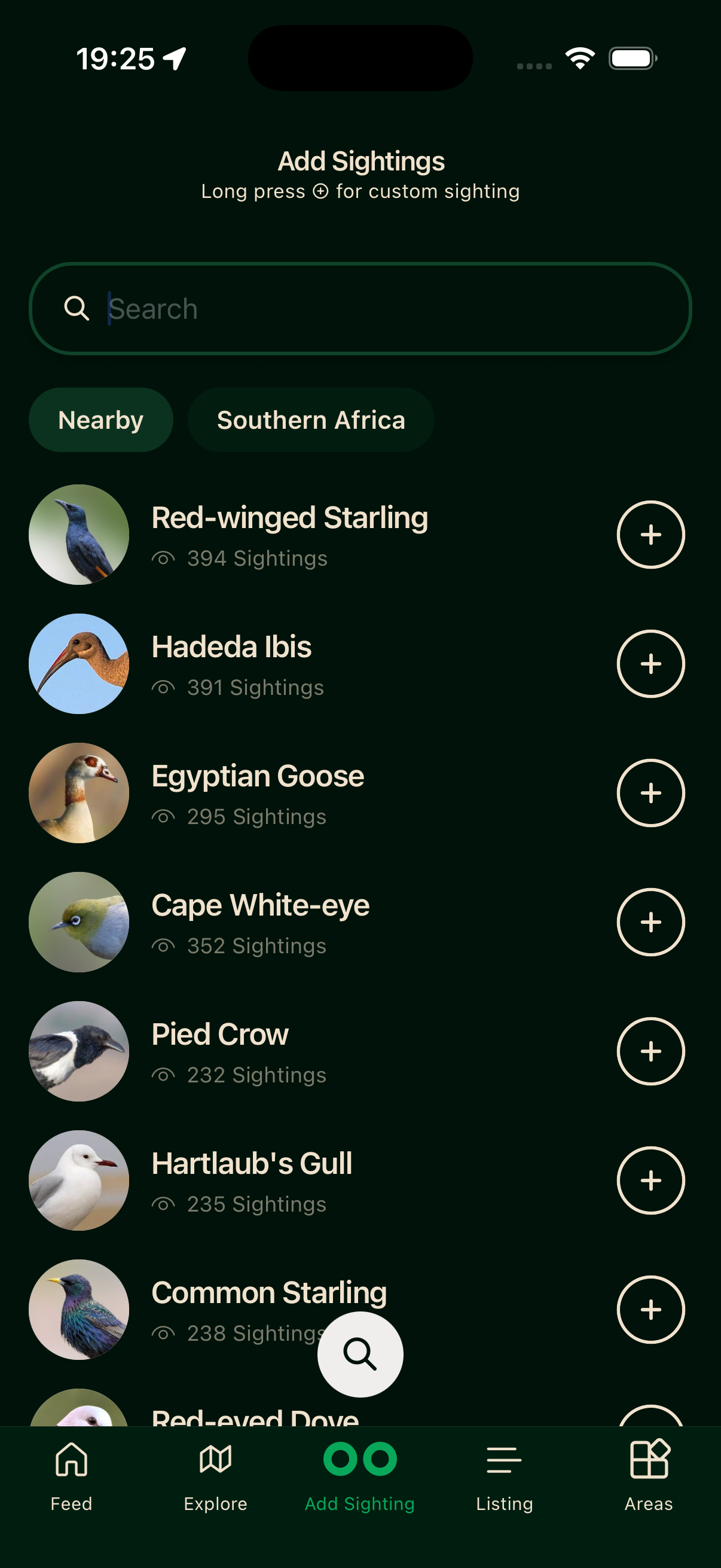
See Your first sighting for the full walkthrough.
Custom sighting
Long-press a species' ⊕ to open the full form. This gives you control over every field:
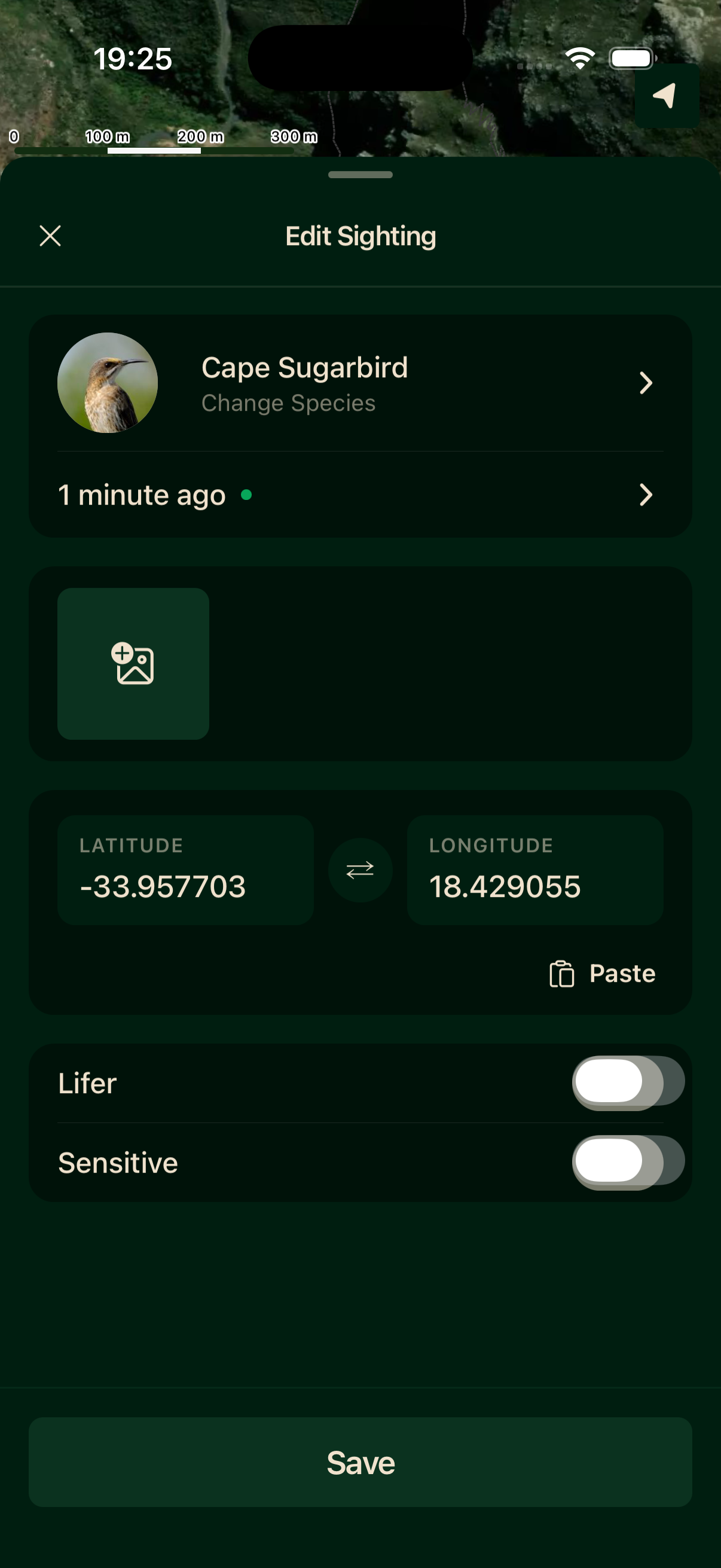
- 1Species — tap to open the searchable picker and change the bird.
- 2Date and time — defaults to now, fully editable for retroactive entries.
- 3Photos — attach up to ten photos per sighting.
- 4Location — auto-populated from GPS; tap the map to drop the pin, or paste coordinates.
Lifer and Sensitive flags
Two toggles at the bottom of the form:
Setting the location
The location is taken from your GPS fix. To set it by hand, tap the map to drop the pin, or tap Paste to read coordinates from your clipboard.
Adding photos to a sighting
Editing a sighting
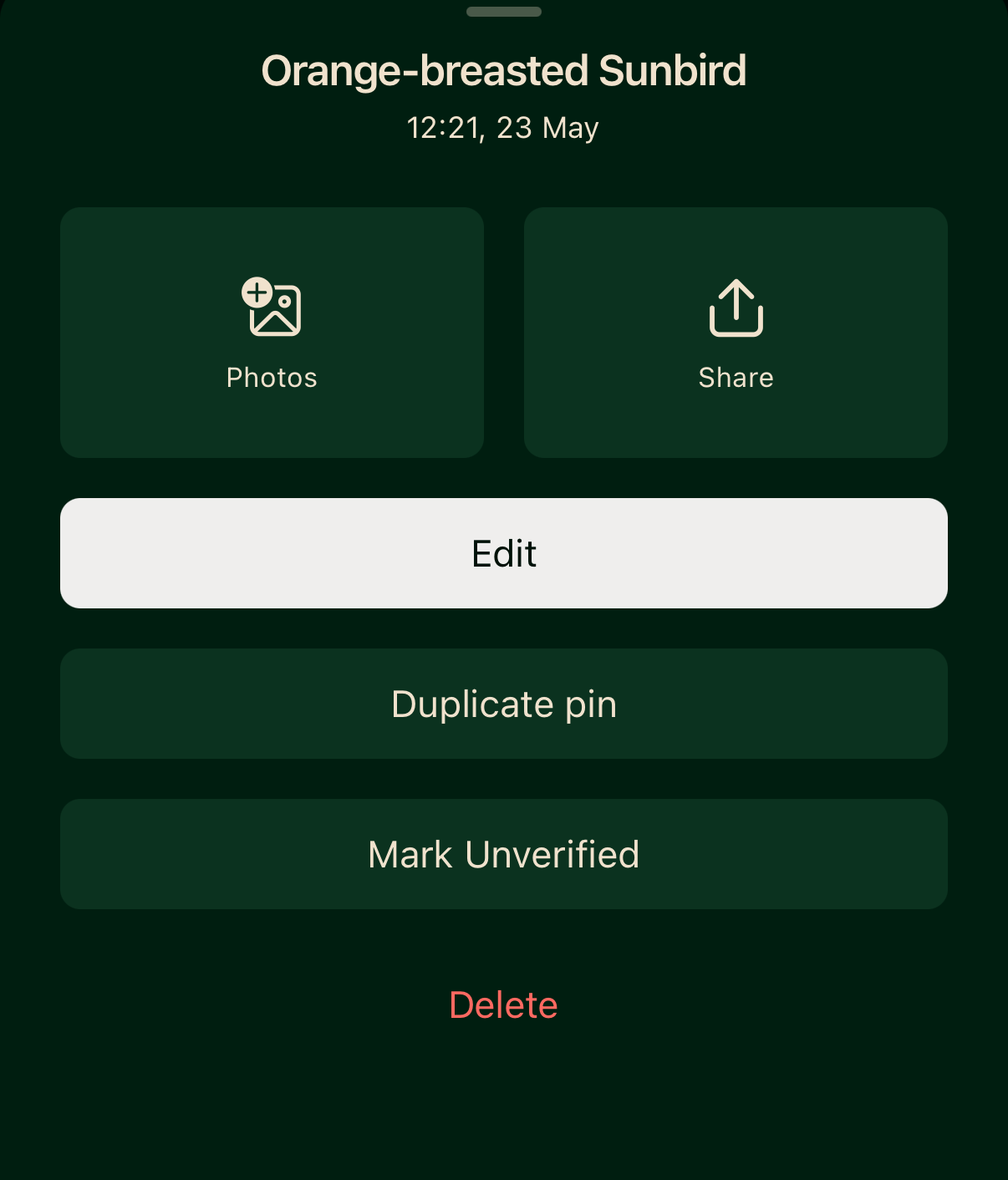
Open any sighting from the Listing tab or your profile, open its actions menu, and tap Edit. You can change the species, date/time, location, flags, and photos. The same menu also lets you add Photos or Share the sighting. Edits update locally straight away and sync to the server in the background.
Deleting a sighting
Open the sighting, open its actions menu, and tap Delete. The deletion syncs to the server. If it was your only record of that species, the species count on your life list updates accordingly.
Offline behaviour
Sightings are written to your device first, then sent to Bïndo's servers in the background. Sync happens automatically when the app comes to the foreground, when your connection is restored, and at regular intervals while the app is active. You can keep logging sightings offline indefinitely; everything catches up the next time you have signal.