Exporting your data
Bïndo can email you a file to import into BirdLasser or eBird. Exports aren't a one-off — switch them on in Settings and they run automatically every time you end a list.
How it works
- Open Settings.
- Under the Exports section, toggle on BirdLasser, eBird, or both.
- Tap Save.
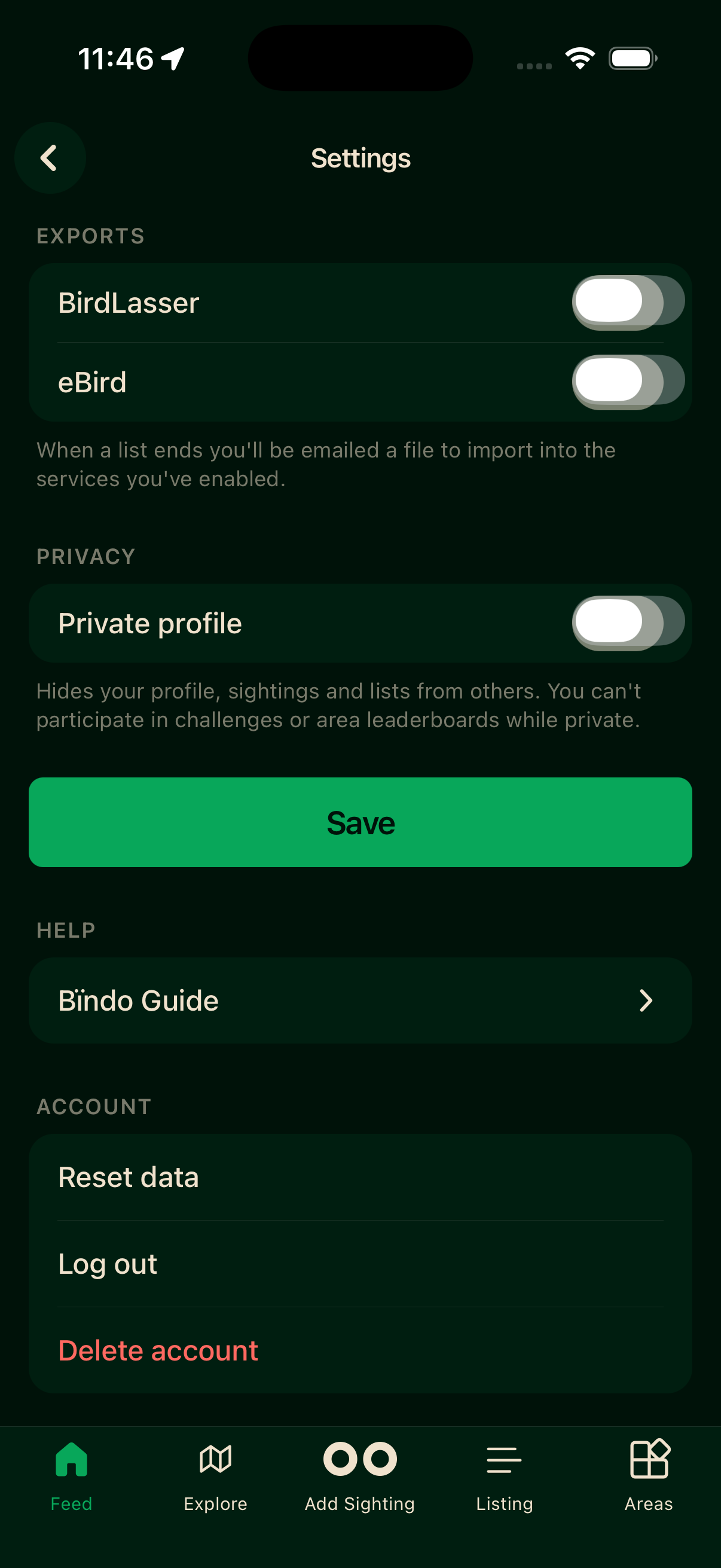
When a list ends you'll be emailed a file to import into the services you've enabled.
Importing into BirdLasser
Open the BirdLasser app and use its standard import flow to load the file Bïndo emailed you.
Importing into eBird
Go to ebird.org, sign in, and use eBird's standard import flow to load the file.
Turning exports off
Toggle BirdLasser or eBird off in Settings and tap Save. Ending a list will no longer email you a file for that service.