Logging sightings
A sighting is the core record in Bïndo: a species, a place, and a time. Everything else builds on sightings: your life list, your trips, the feed.
Video walkthroughs
Visibility
Sightings are public by default. Anyone on Bïndo can see them in the Feed, on your profile, and on the map. If a bird is somewhere sensitive, such as an active nest or the roost of a rare species, mark the sighting sensitive when you log it. Sensitive sightings show only the general area, never the exact coordinates.
Because they're public and shared, log each bird where and when you actually saw it. See Accurate sightings.
Quick-add
Tap the Add Sighting tab, search for a species, then tap its ⊕. Bïndo stamps your GPS location on it and saves in one tap.
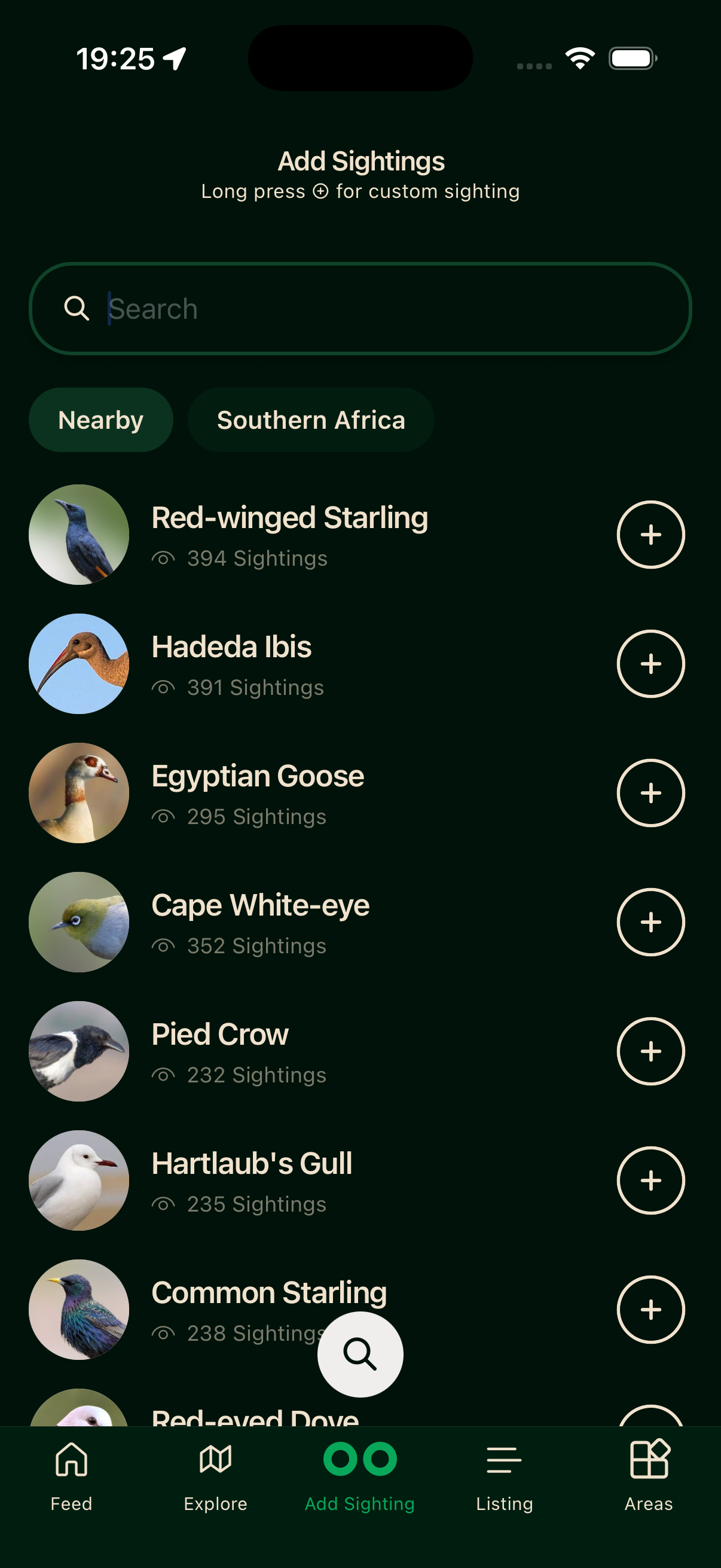
See Your first sighting for the full walkthrough.
Custom sighting
Long-press a species' ⊕ to open the full form, which gives you control over every field:
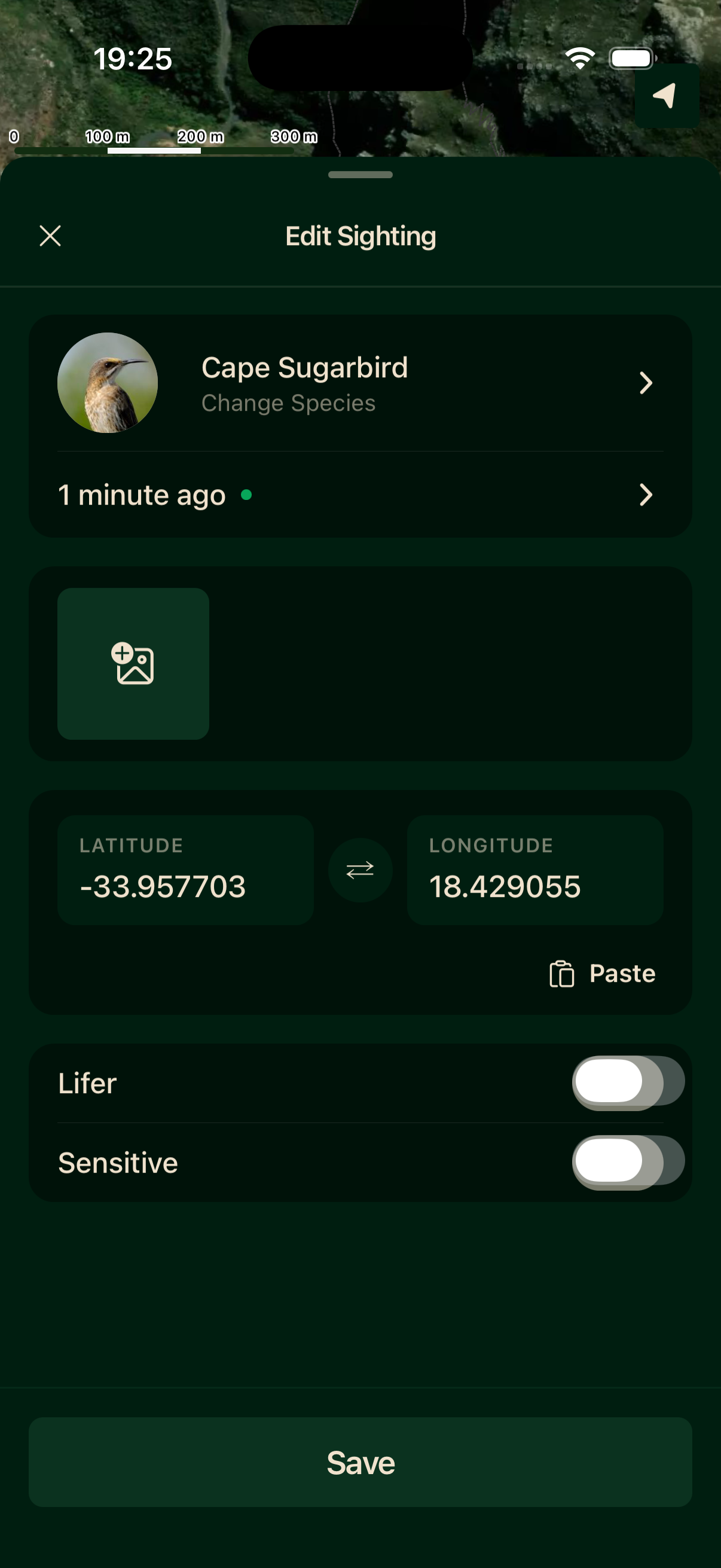
- 1Species — tap to open the searchable picker and change the bird.
- 2Date and time — defaults to now, fully editable for retroactive entries.
- 3Photos — attach up to ten photos per sighting.
- 4Location — taken from GPS; tap the map to drop the pin, or paste coordinates.
Lifer and Sensitive flags
Two toggles at the bottom of the form:
Pasting a location
Tap Paste to read a coordinate straight from your clipboard.
Adding photos to a sighting
Editing a sighting
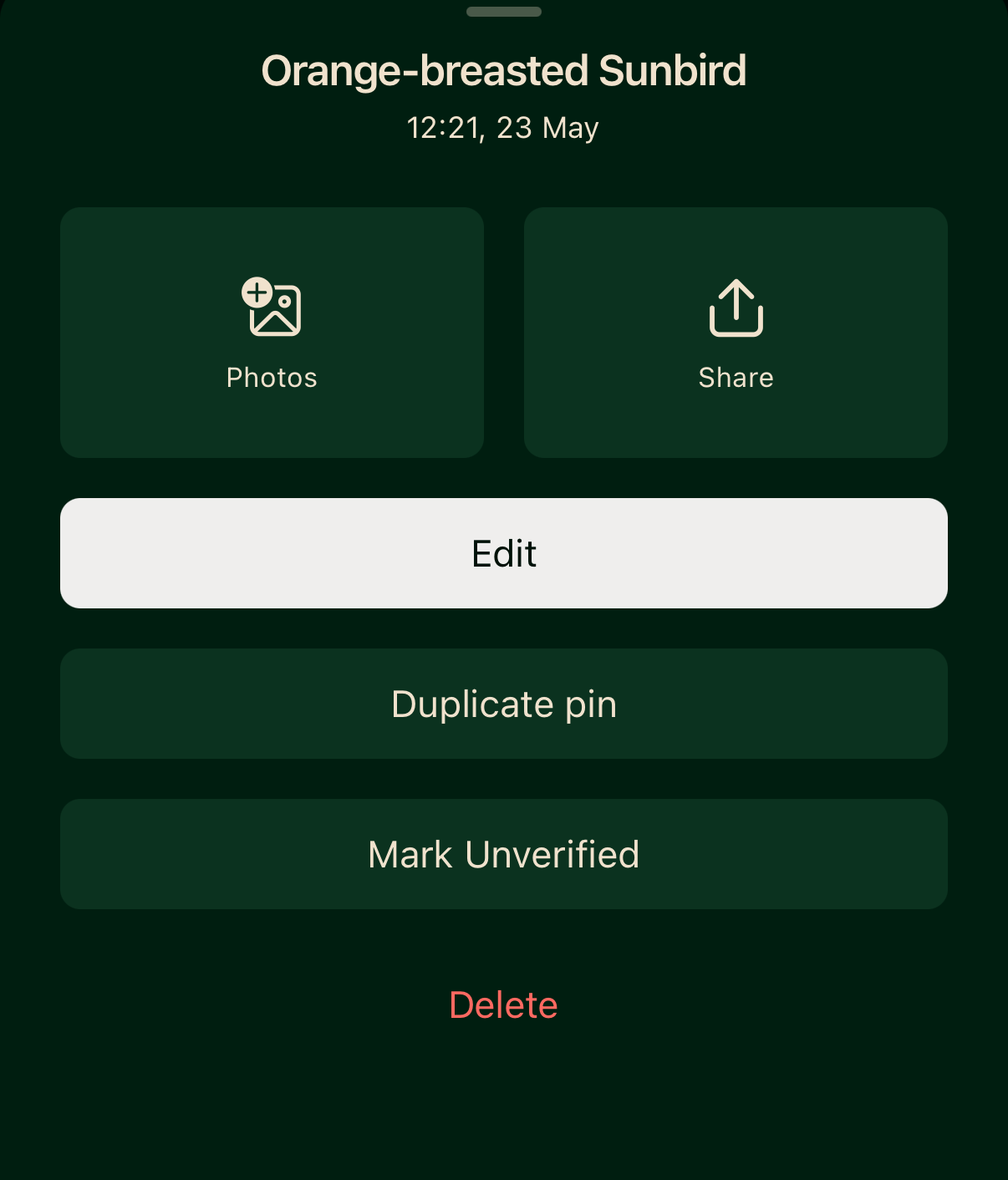
Open any sighting from the Listing tab or your profile, open its actions menu, and tap Edit. You can change the species, date and time, location, flags, and photos. The same menu also lets you add Photos or Share the sighting. Edits save locally straight away and sync in the background.
Deleting a sighting
Open the sighting, open its actions menu, and tap Delete. If it was your only record of that species, your life list count drops by one.
Offline behaviour
Sightings save to your device first, then sync in the background: when you open the app, when your connection returns, and at intervals while you're using it. Log offline for as long as you like; everything catches up next time you have signal.